Windows
On a domain controller, In AD Users and Computers, create a group for all users that will have folder redirection.
Go onto your other server and install File and Storage Services.
On your file server, go to server manager. Select File and Storage Services > Volumes > Shares. Select Tasks > New Share.
In the Profile select SMB Share - Quick.
Name the file share “Users$”
On Other settings, select Enable access-based enumeration and Encrypt data access.
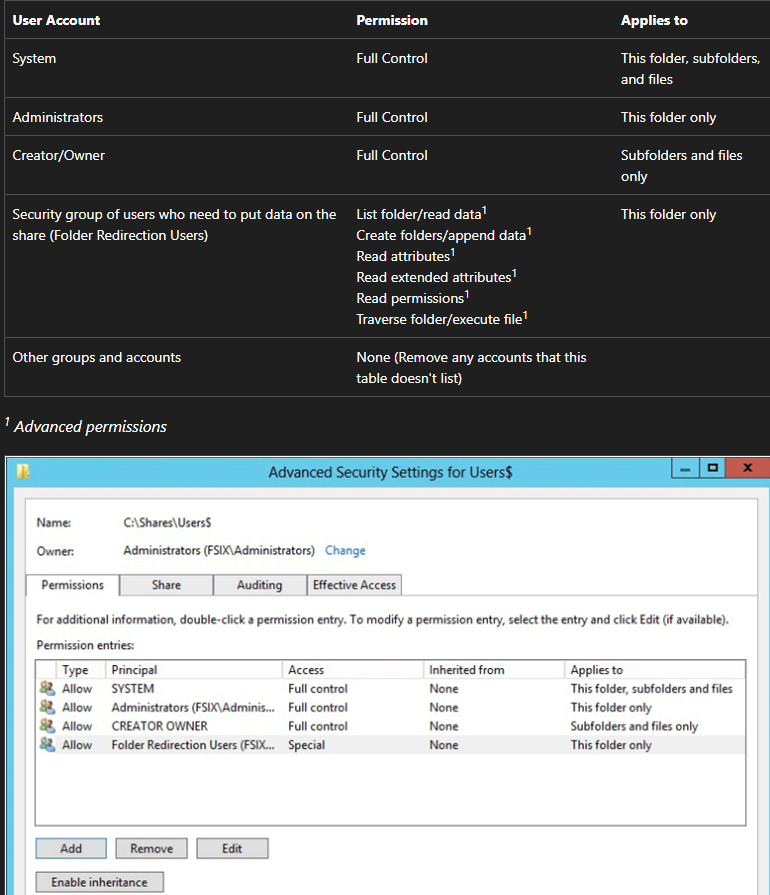
Permissions > Customize Permissions > Disable Inheritance > Convert inherited permissions into explicit permissions on this object.
Set permissions as show on the right.
Create the share.
Go back to the Domain Controller and select Group Policy Management.
Create a GPO in this domain, and link it here at the top of the domain.
Right click the GPO and clear Link Enabled.
Click the GPO and in Scope > Security Filtering, remove authorized users. Add Folder Redirection Users group.
In Delegation, add authenticated users with read permissions.
Edit the GPO and go to Users Configurations > Windows Settings > Folder Redirection.
Select folders you want redirected and right click the folder > properties.
Setting is set to Basic.
Target Folder Location is set to Create a folder for each user under the root path.
Root Path will be the location of the share created in step 3. (i.e. \\FS01\Users$).
In the settings page, deselect Grant the user exclusive rights to the desktop.
Under Policy Removal, select Redirect the folder back to the local userprofile location when policy is removed.
Select the GPO created and right click it and select Link Enabled.
Confirm folder redirection by signing into a user account on a computer and running gpupdate /force in the command prompt